























































































How to Install Zoom, Teams and Other Apps on the OBSBOT Talent 2
Make More of Your OBSBOT Talent 2!
Installing additional applications can help you tailor your OBSBOT Talent 2 to your needs, opening up more possibilities for livestreaming, video calls and content creation.
Whether you want to explore apps such as Zoom and Microsoft Teams or discover other compatible applications, the process starts with the Applications menu on your device.
Ready to get started? Open the Applications menu on your OBSBOT Talent 2 and follow the steps above to explore your available app options.
See similar: The OBSBOT Talent 2: What's New? Comparison with OBSBOT Talent
Note: The availability and compatibility of third-party apps may vary. Before installing an application, check the instructions and compatibility information provided by the relevant download source.

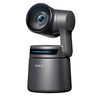
The OBSBOT Talent 2 comes with several apps ready to download, including TikTok, Instagram and Google Chrome. But what if you want to use other applications, such as Microsoft Teams or Zoom?
The good news is that you can install additional apps on your OBSBOT Talent 2 using the available third-party app download options.
In this guide, we’ll walk you through the process step by step.
Which Apps Can You Install?
Alongside the apps available directly on the device, you can find additional applications, including Microsoft Teams and Zoom, through the third-party app resources linked from the OBSBOT Talent 2.
This gives you more flexibility to customise your device to suit your workflow, whether you're livestreaming, hosting meetings or creating content.

Step-by-Step Guide: Installing Third-Party Apps
Follow these simple steps to find and install additional applications on your OBSBOT Talent 2.
Step 1: Open the Main Menu
From the main camera view screen, locate and tap the three-line circular button to open the device menu.
Step 2: Select Applications
In the menu, tap Applications to access the apps available on your device.
Step 3: Open the App Download Menu
Look for the squares-and-plus icon in the top-right corner of the screen and tap it.
This will take you to the app download section.

Step 4: Browse the Available Apps
Here, you can browse and download the apps already listed as available for your OBSBOT Talent 2.
If you're looking for an application that isn't listed, scroll down to the bottom of the page to find the additional app download option.
Step 5: Access Third-Party Apps
At the bottom of the page, tap the link labelled “here” to access the additional app resources.
Step 6: Scan the QR Code
Use your smartphone to scan the QR code displayed on the screen. This will open the relevant application page on your phone, where you can explore and install additional apps.
Follow the instructions provided on the linked page to complete the process.

Founded in 2016, OBSBOT is an innovative imaging technology and hardware brand dedicated to using new technologies such as AI to inject new vitality into the videography market.
EssentialPhoto & Video is the Official OBSBOT Partner and UK Distributor, stocking the widest range of OBSBOT kit in the UK, offering a 12 Month Warranty*, and Customer Support at our Birmingham-based store. All OBSBOT stock is dispatched from our warehouse in the West Midlands, UK.


